
toFollow the instructions below to quickly create a spot that will wow your clients and prospects.
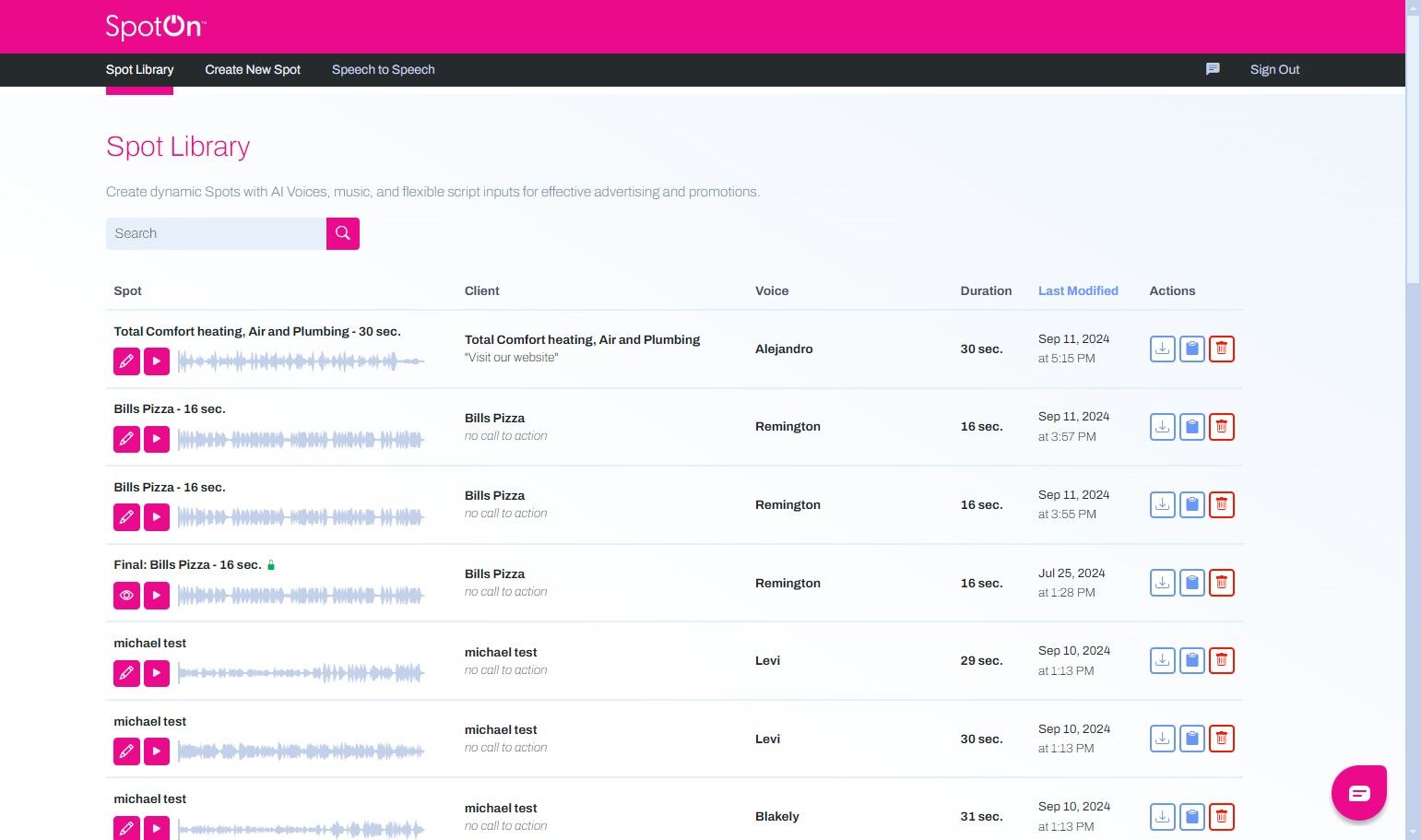
1. Click Create New Spot tab.

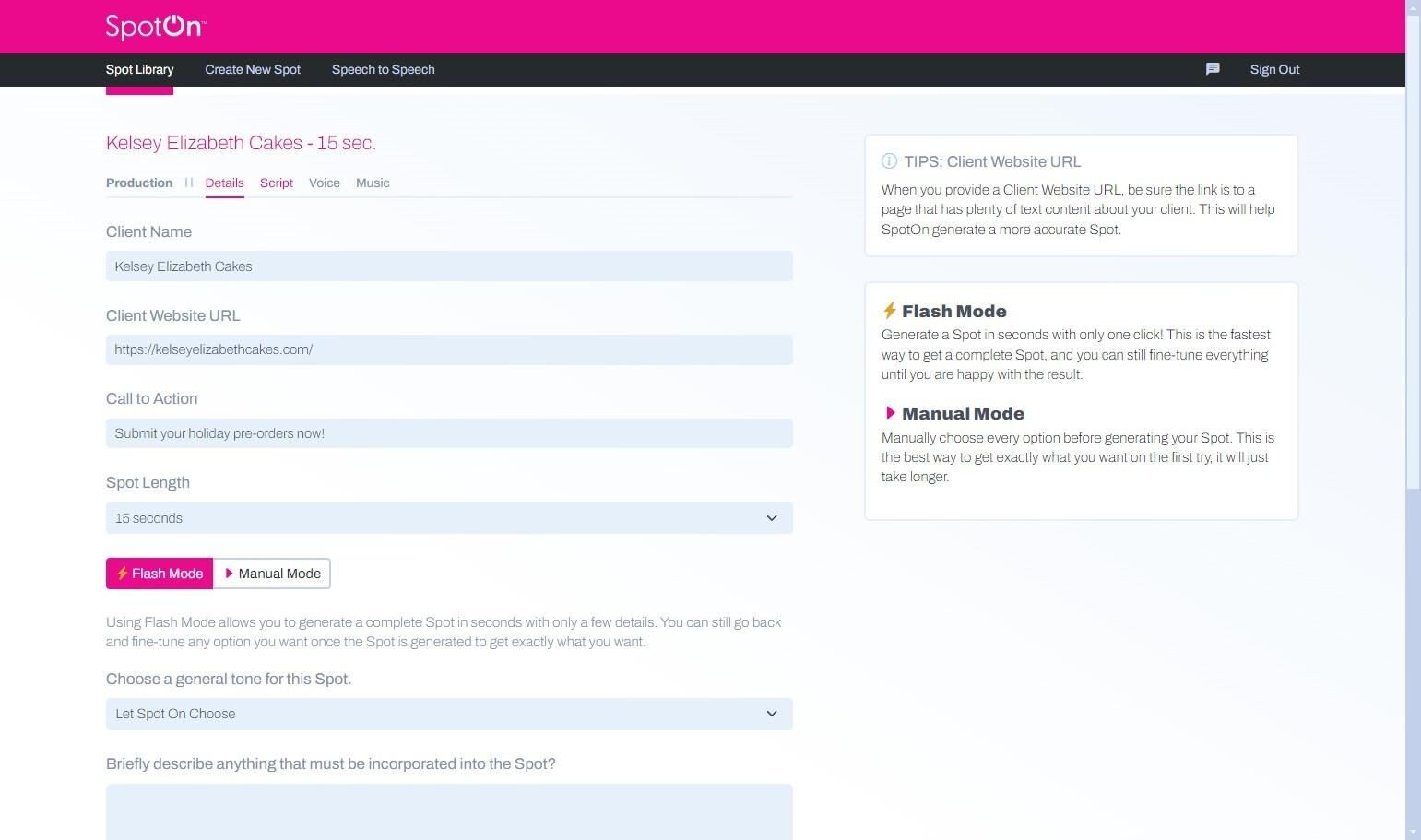
2. To begin, enter the client's name and website.
3. Enter the Call to Action that should be included in the spot.
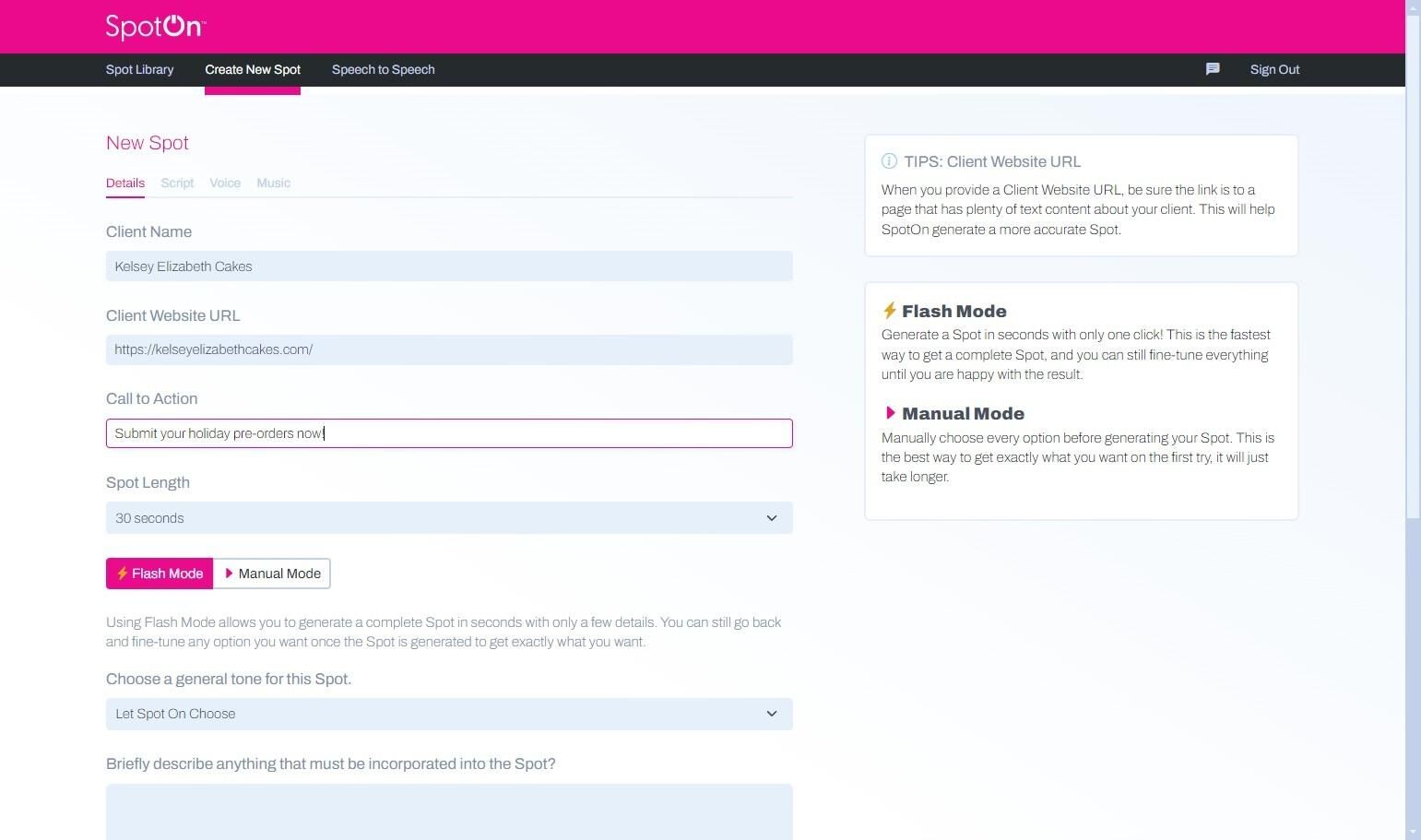
4. Choose a length for your spot.
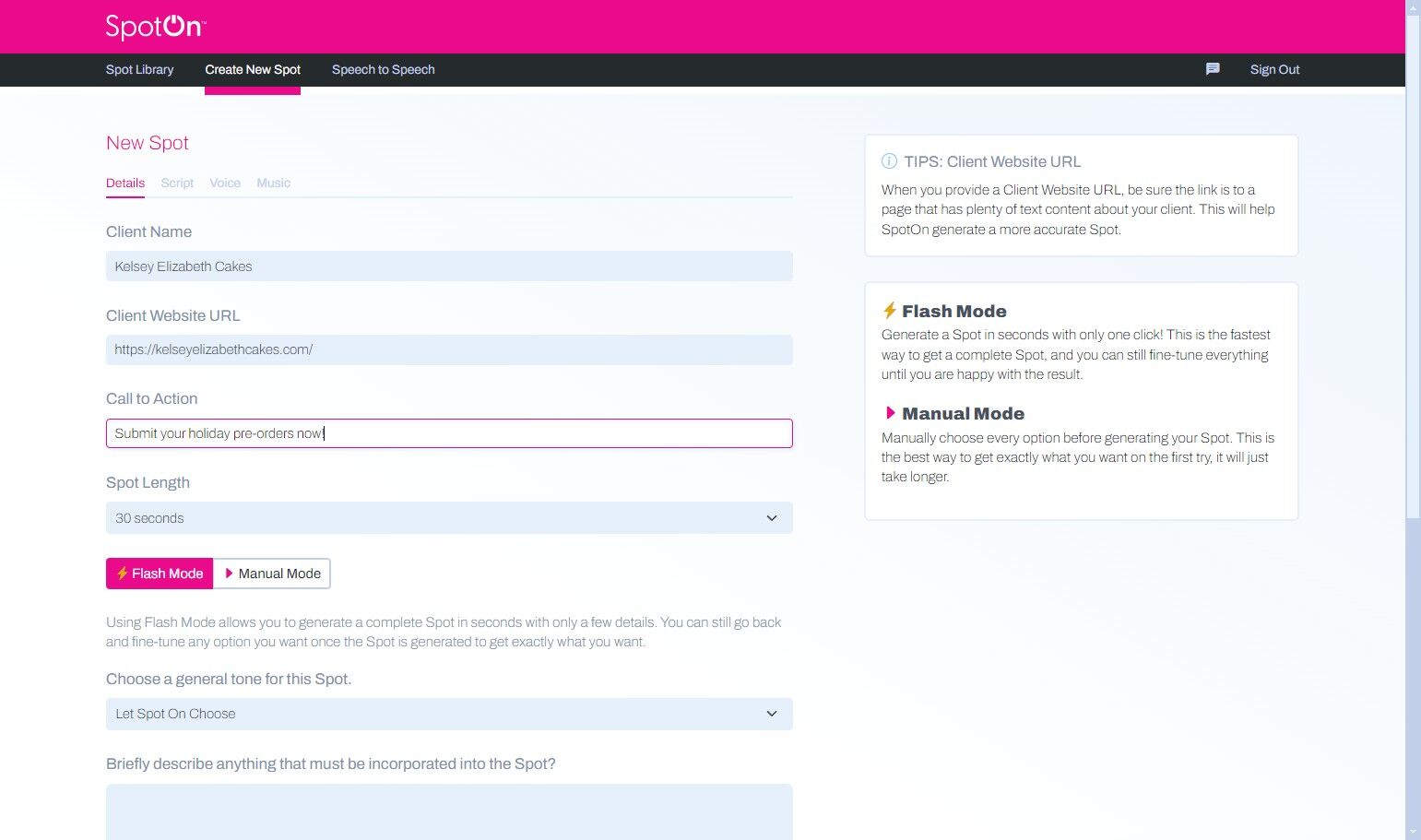
5. If desired, select a tone for the read, or opt to let SpotOn choose for you.
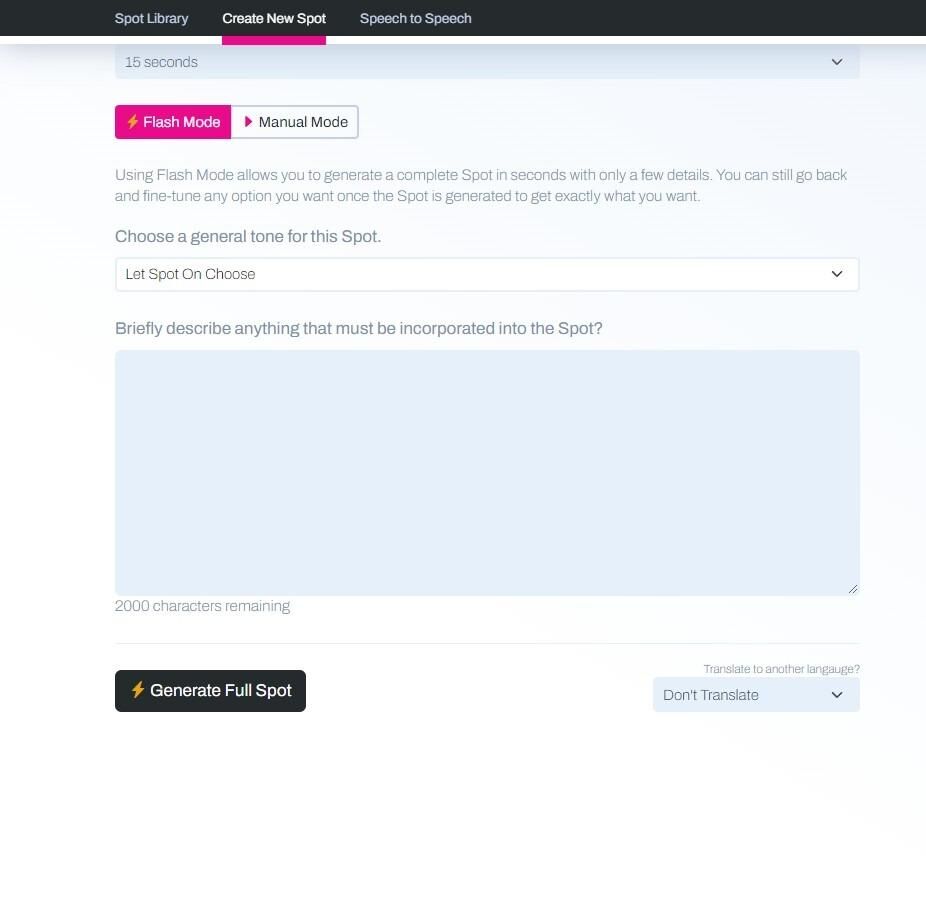
6. Enter any copy that must be included in the spot.
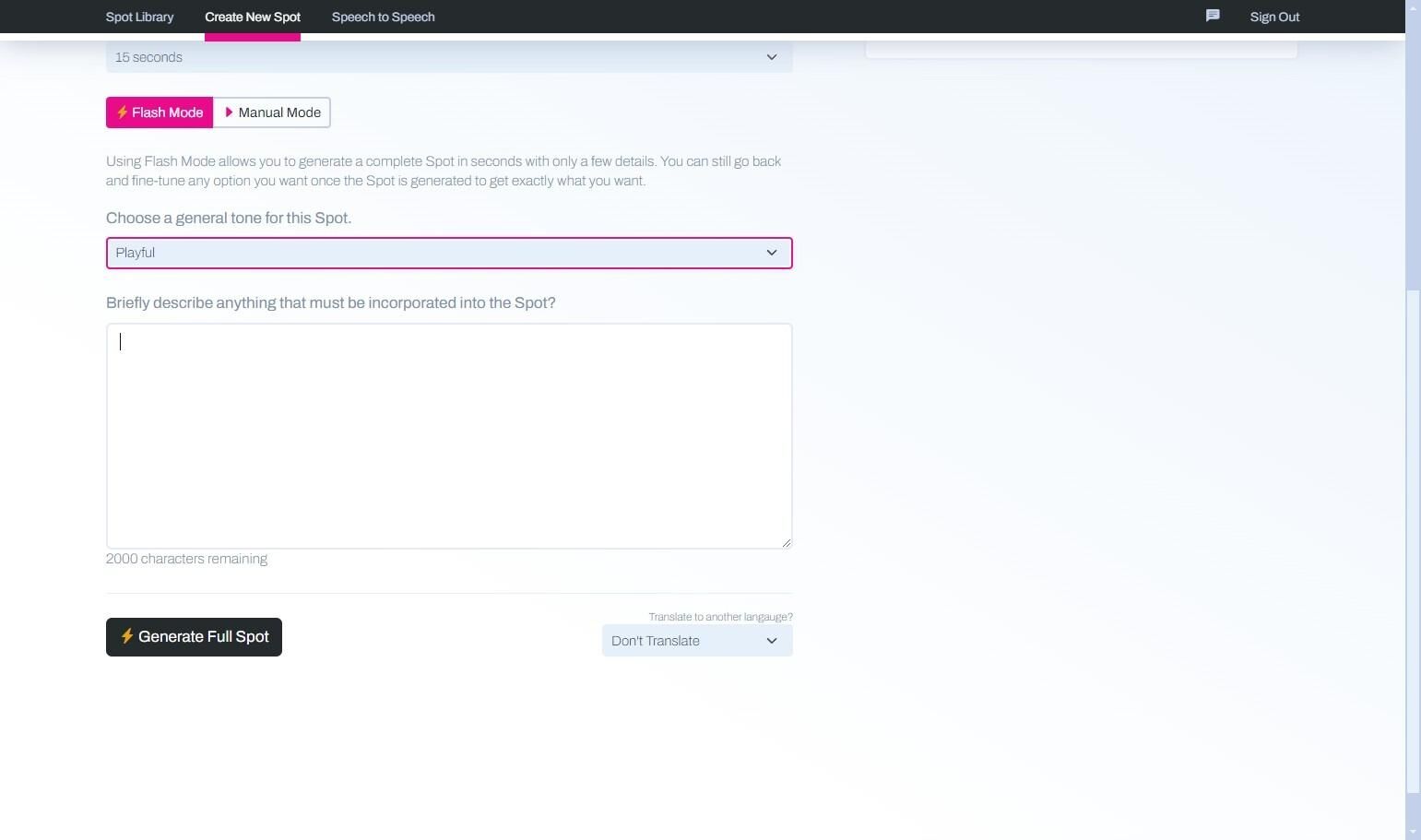
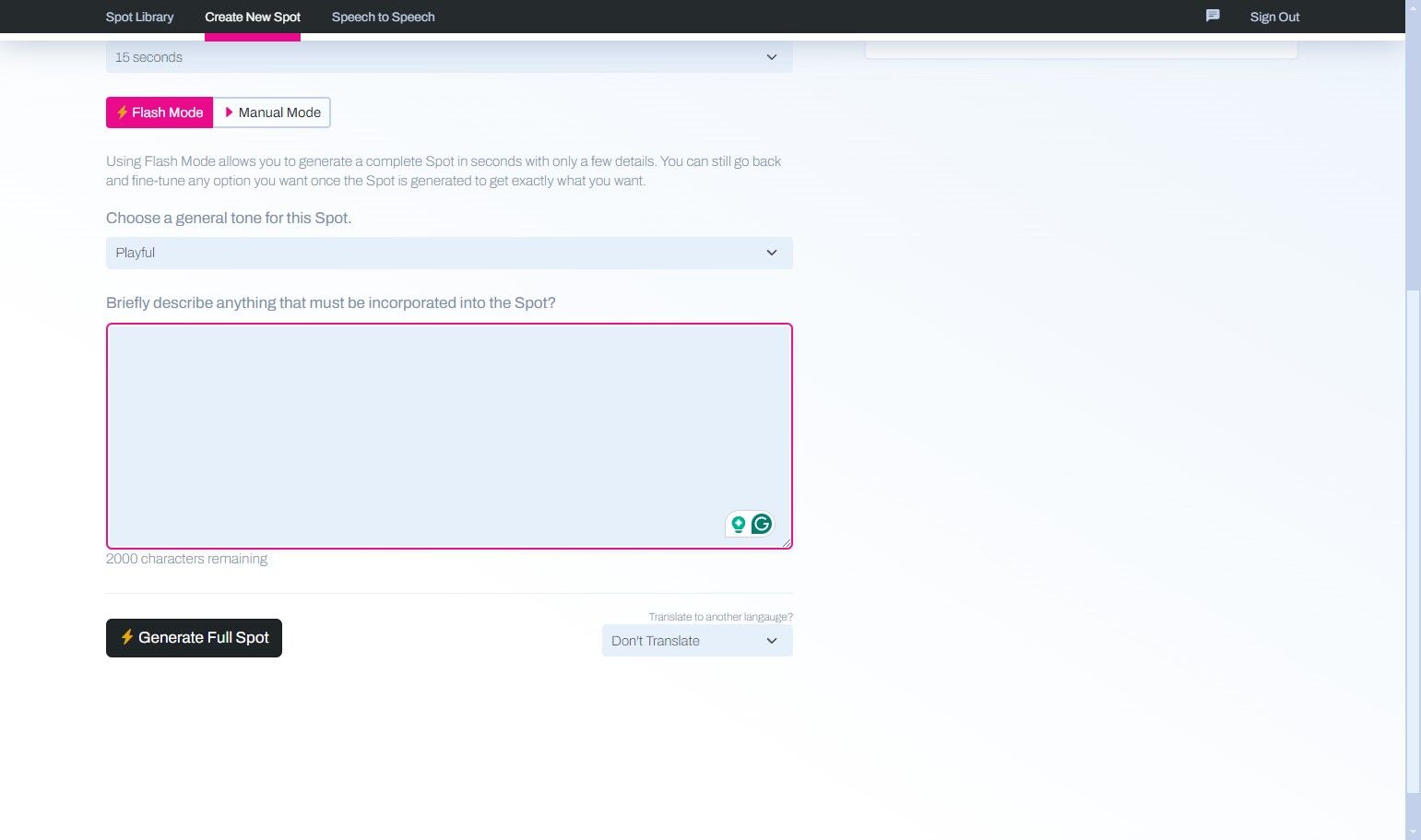
7. Click Generate Full Spot.
8. In just a few moments, your spot will be created. Click the play button to listen to it.
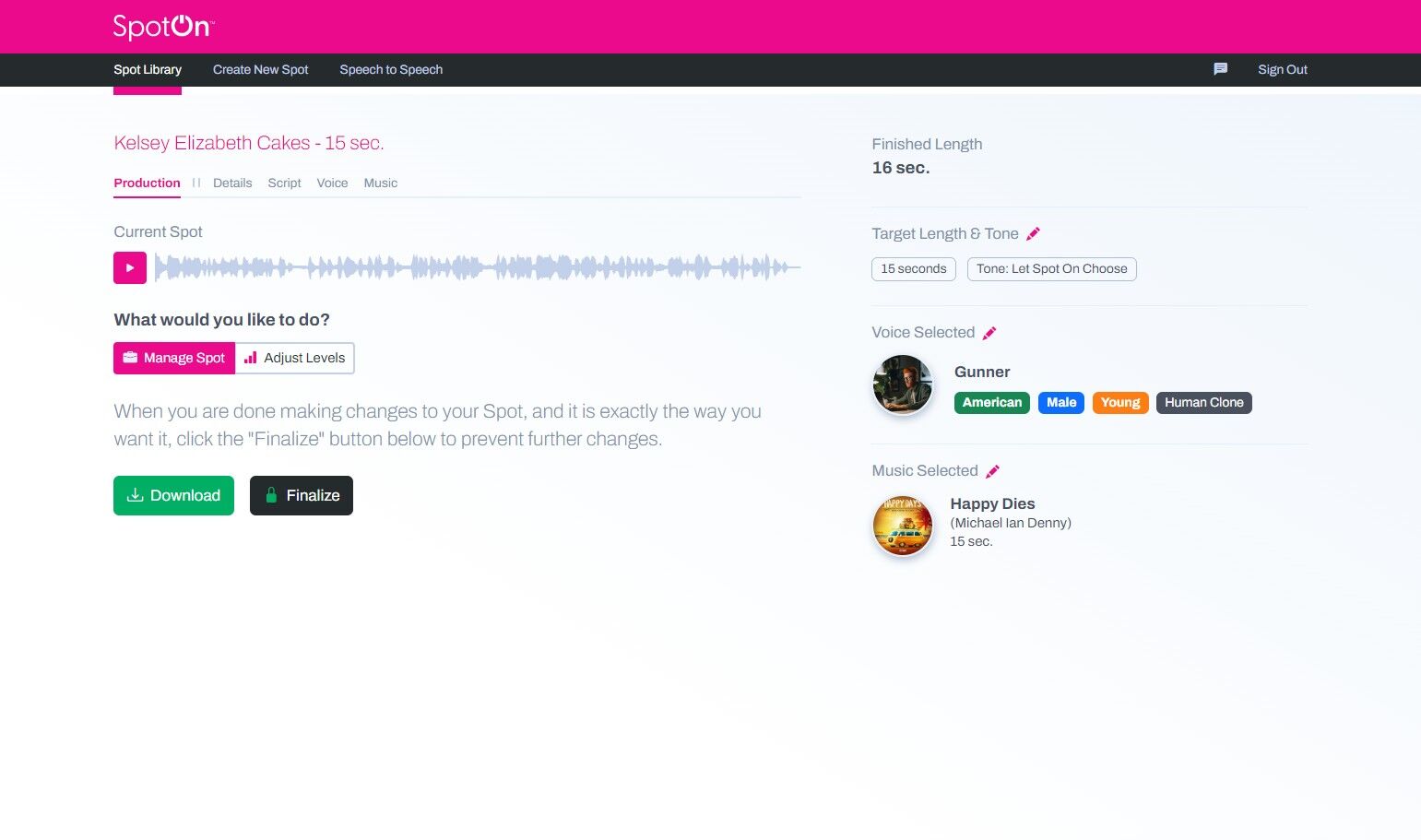
9. Click Download for a shareable file.
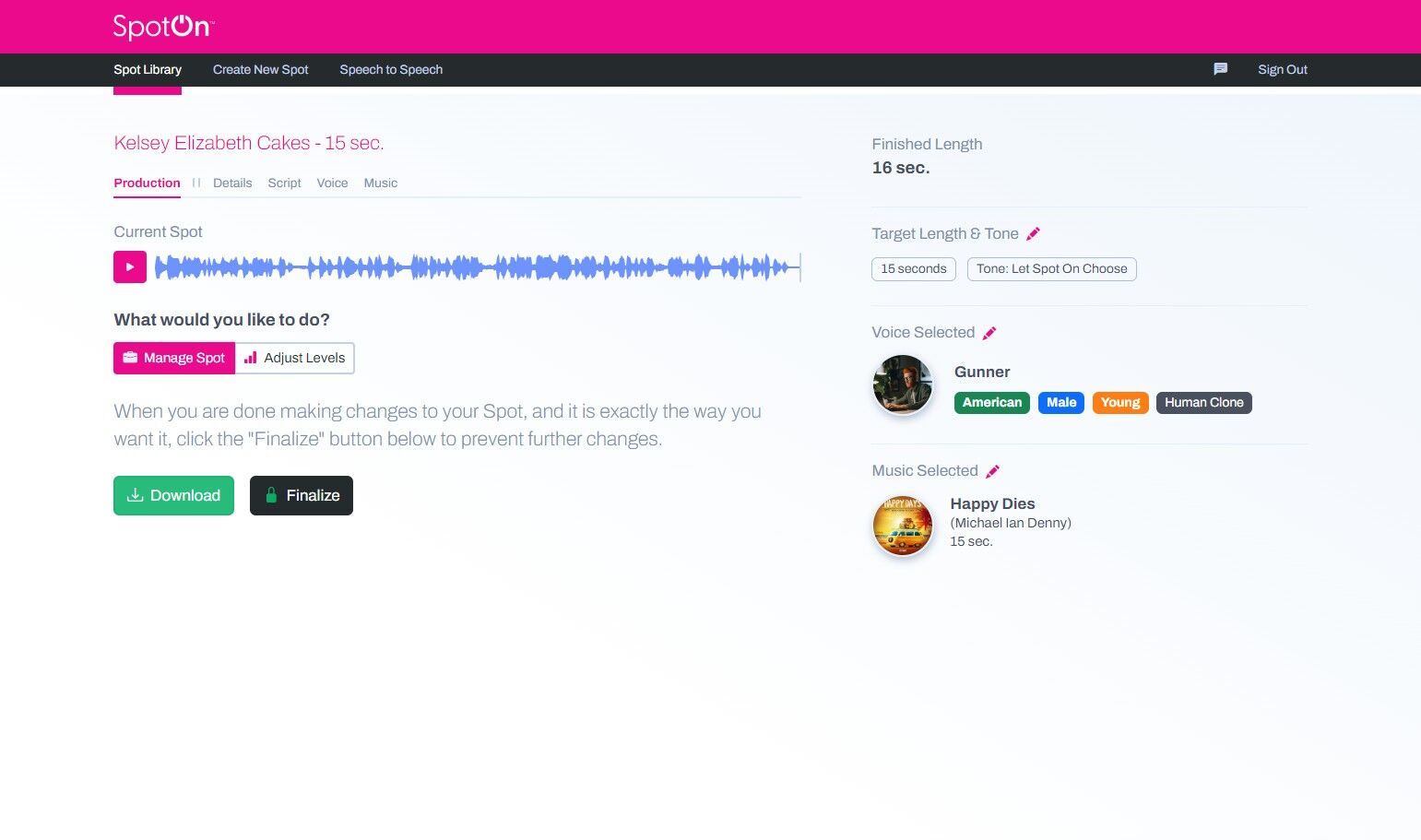
10. If you are happy with the spot, you can also click to Finalize it so that no further changes can be made.
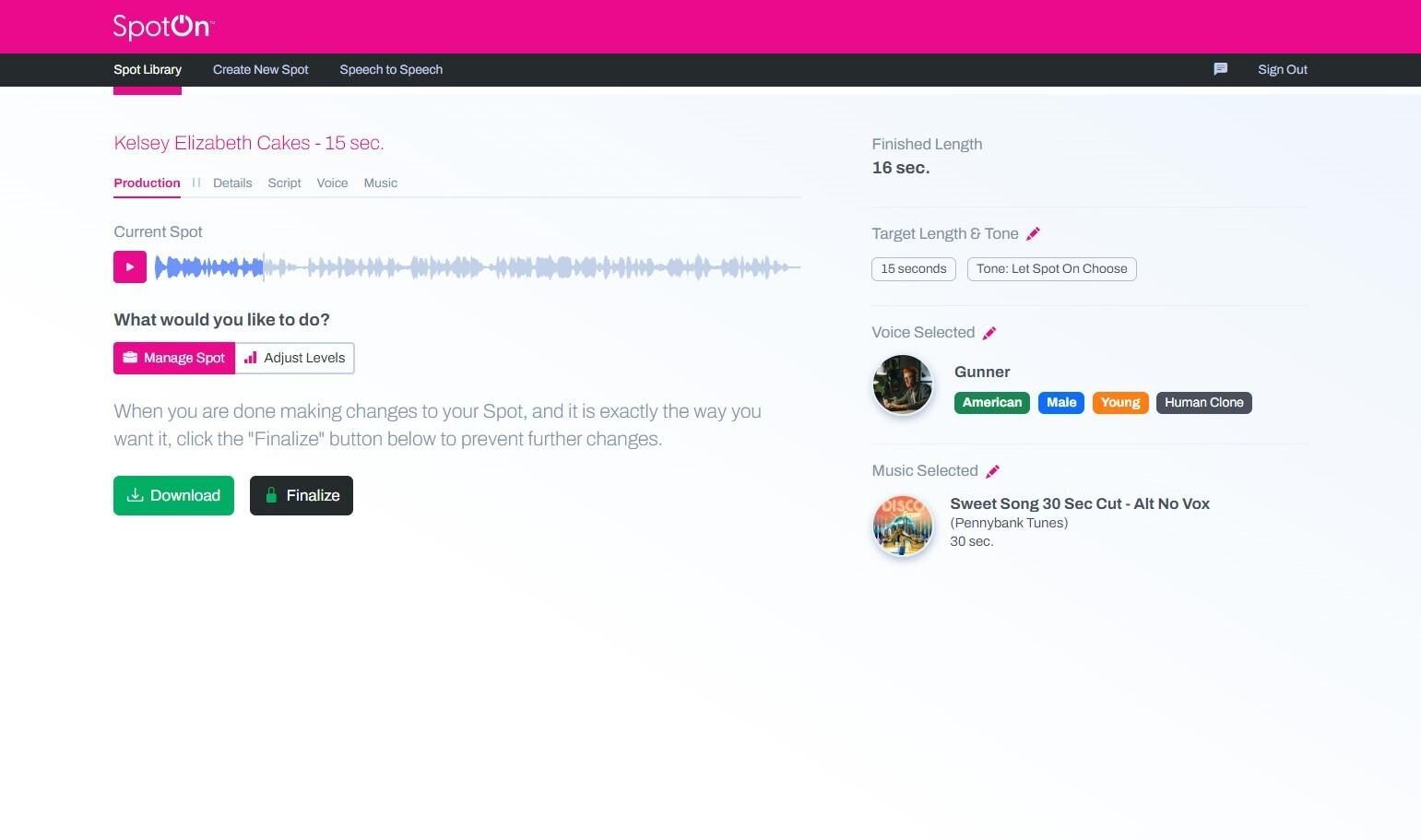
11. If you would like to make changes to your spot, you have different options.

Click Adjust Levels and use the sliders to make changes to the sound of the spot.
12. Choose the Details if you would like to change any of the original selections you made.
13. Click the "Current Script" field.
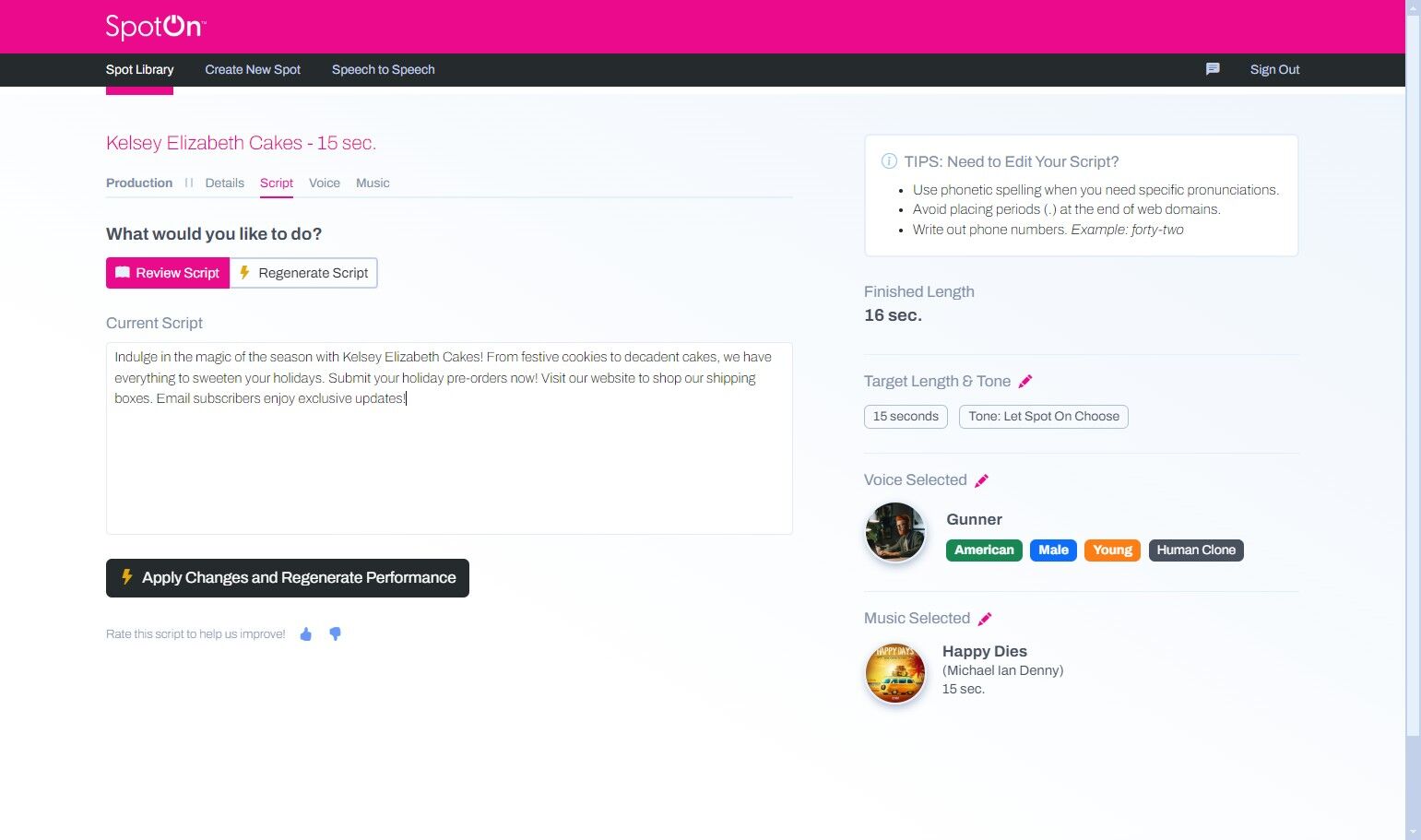
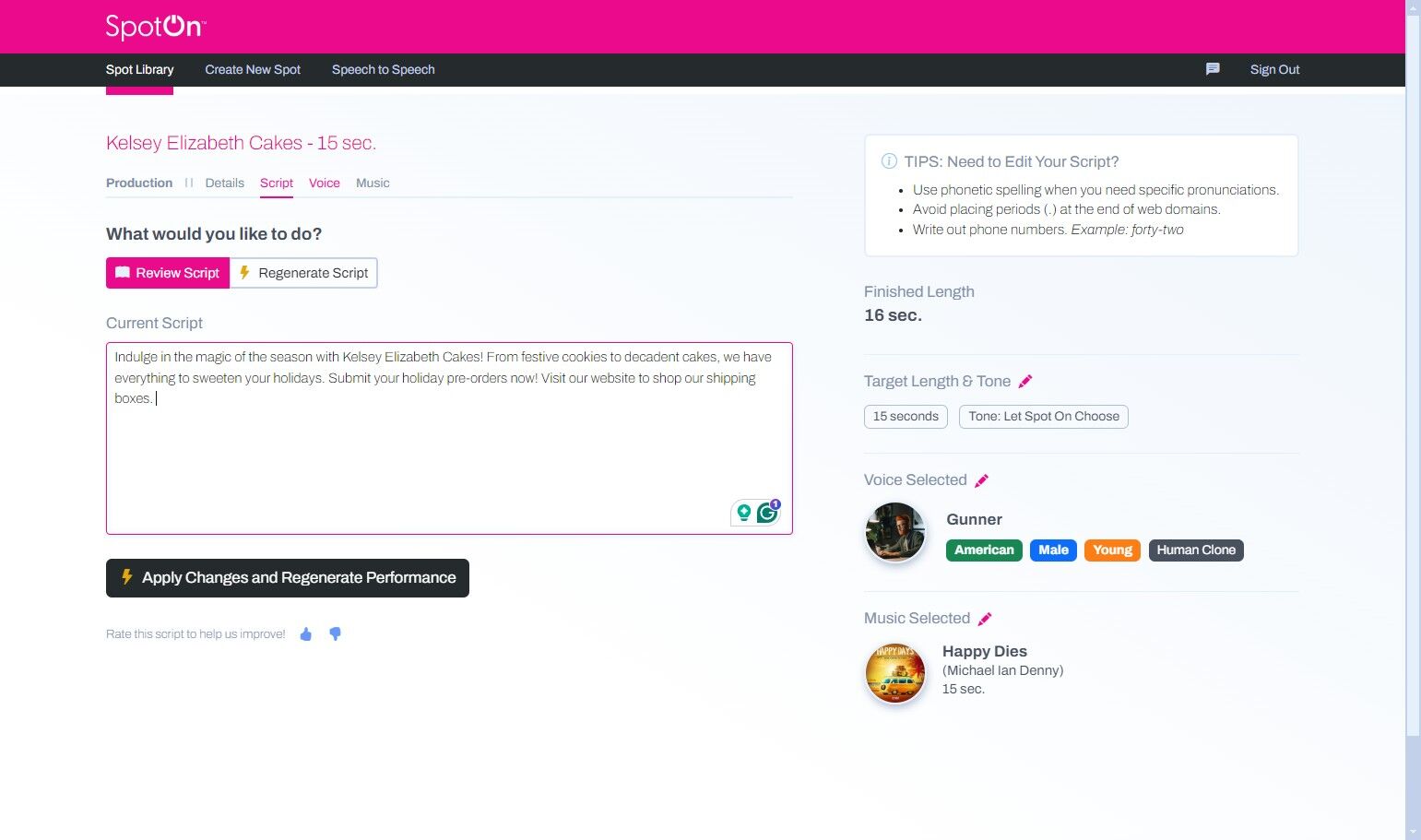
14. Choose the Script tab to edit the AI-generated script and make it your own.
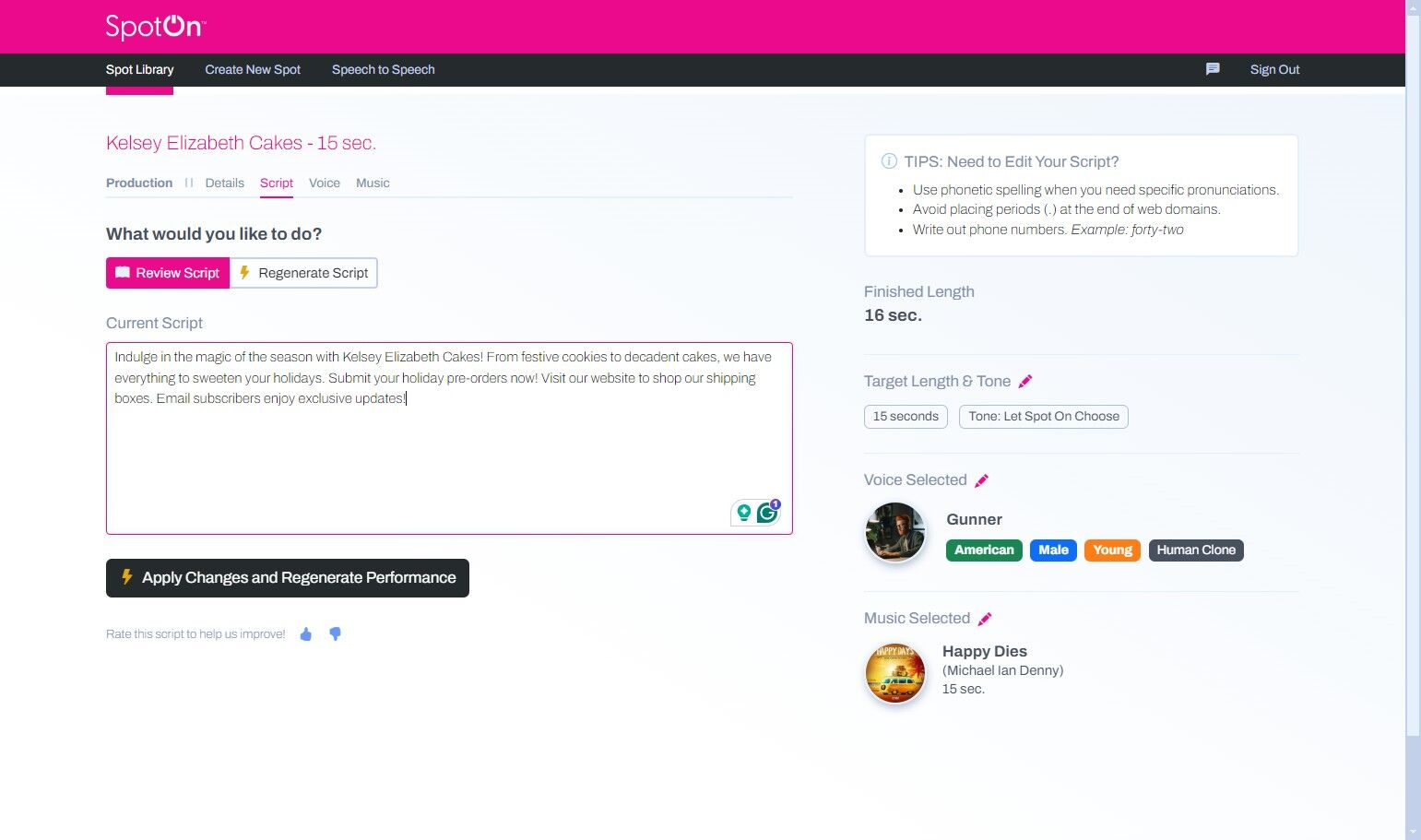

15. Click "Voice"
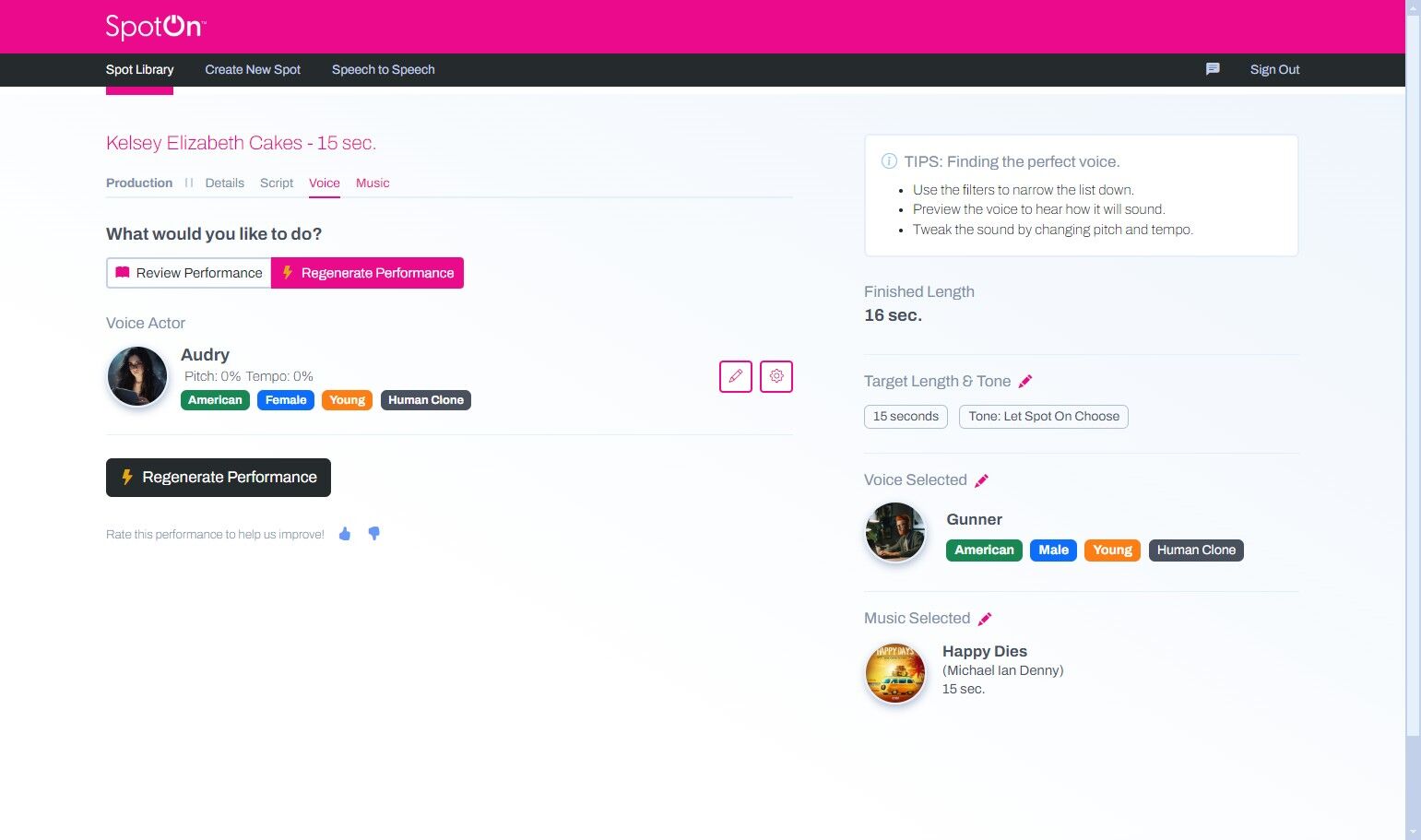
16. On the Voice tab you can Review or Regenerate Performance.
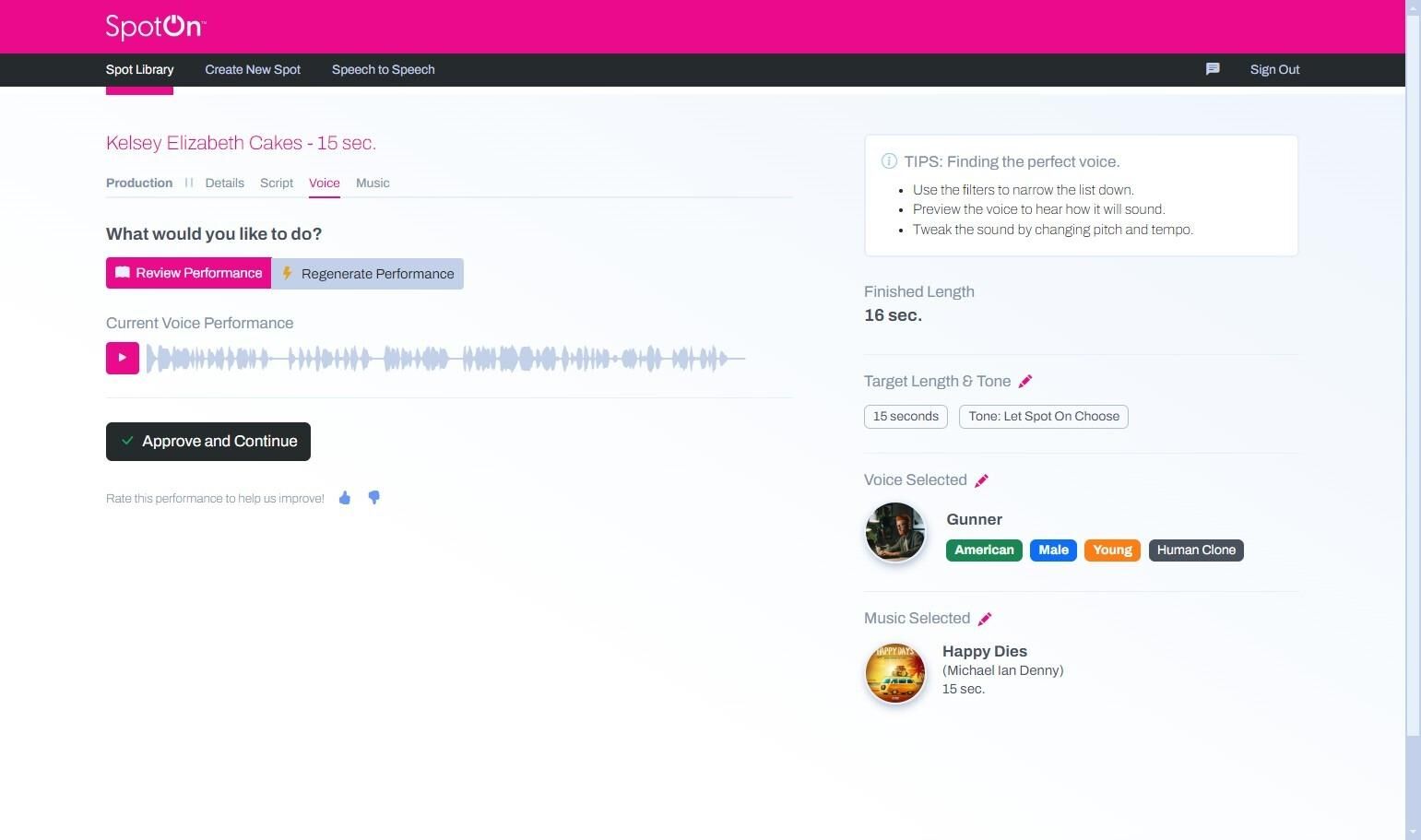
17. In the Regenerate Performance section, you can click the pencil icon to choose a different voice from SpotOn's voice library.

18. Click "Music"
19. On the Music tab, you can use the filters to select a new music bed or remove it altogether. Click Save Choice to lock in your changes.
20. When done editing, make sure to download and/or finalize your spot.