Zetta Installation
To connect Futuri AudioAI™ to your station's automation system, your team must first contact your local RCS Sales Representative to sign an RCS Futuri AudioAI™ interface contract. The RCS Support Team will then help your station install the necessary plug-in.
Before your installation, you should contact your music scheduler support team to set up the export using the notes below and ensure the breaks are properly outlined in your clocks.
Music Scheduler Export to Zetta
For all Music Schedulers other than GSelector:
Set up a log export of Futuri AudioAI™ events. In the log export, the Event Type should be set to COMT (comment) and the Title to [GPT]Breaknote Name. For example: [GPT]WeatherBreak
When complete, your export file should contain entries like this for Zetta: ^COMT^^[GPT]Breaknote Name
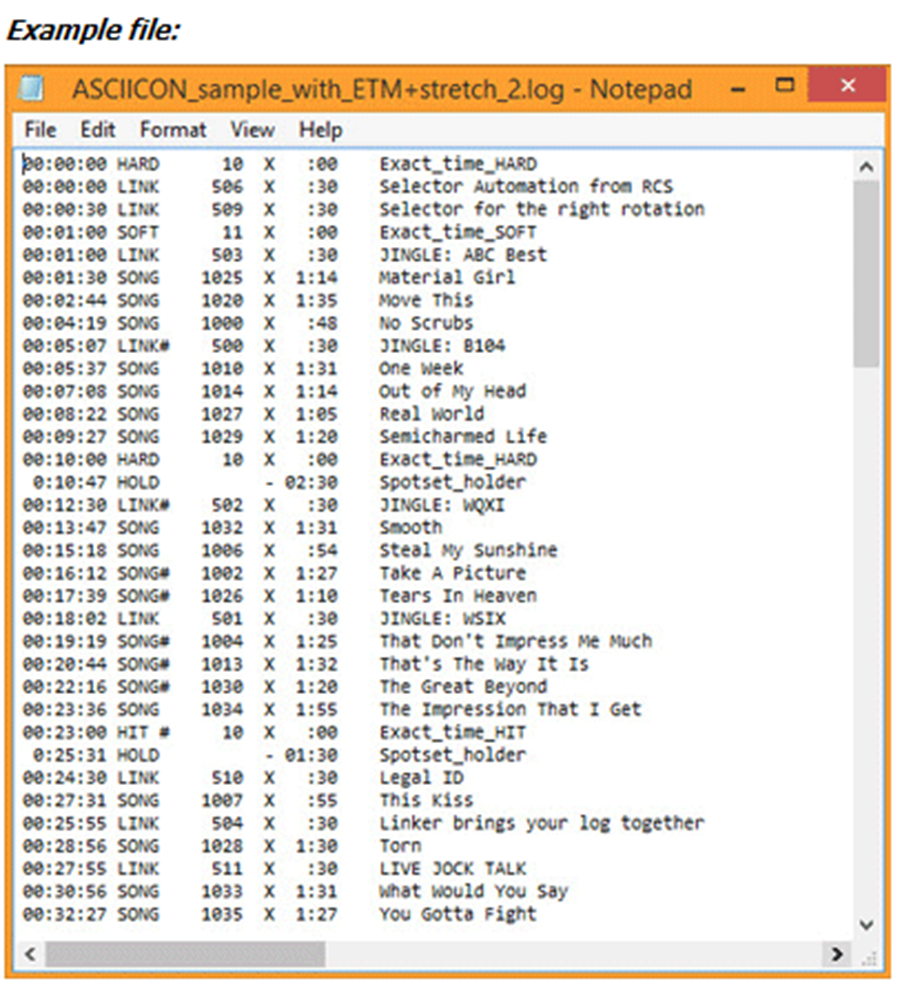
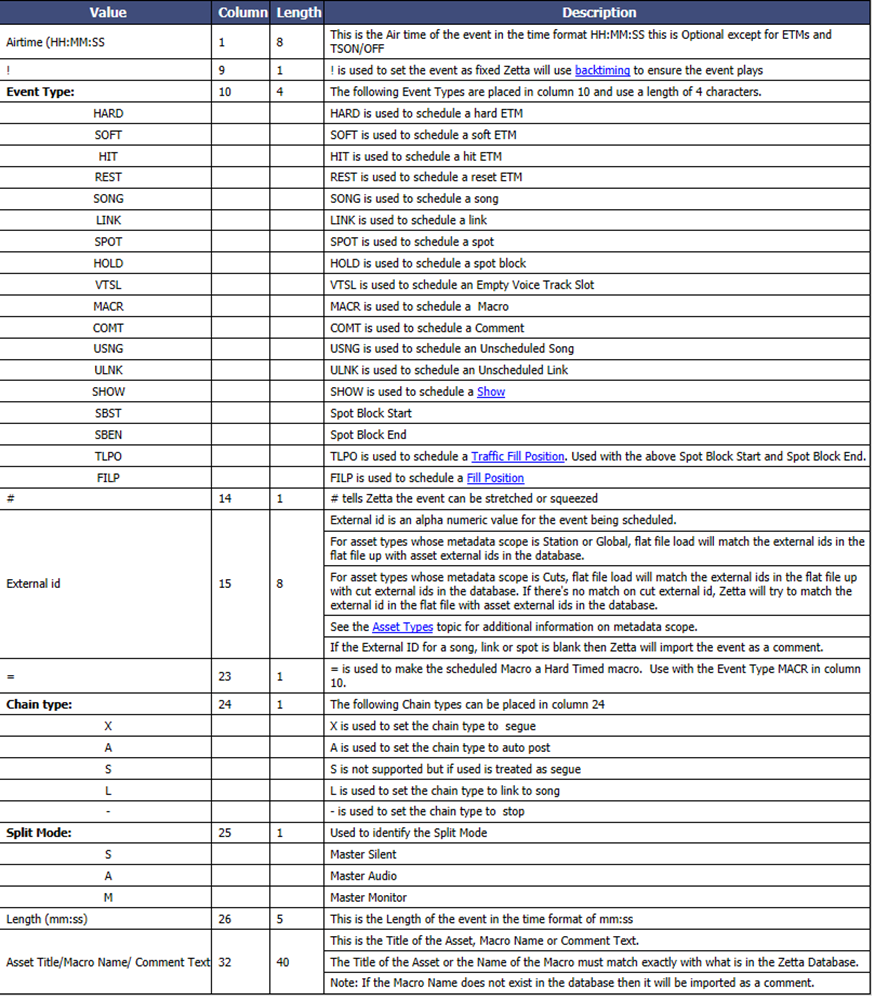
This is how to build an ASCIICON flat file export:
Export File Example: